Enable static website feature
What is Static Website Hosting?
Static website hosting allows you to host a website directly from an S3 bucket. Unlike dynamic websites that require server-side processing, static websites consist of fixed content (HTML, CSS, JavaScript, images) that is delivered directly to users’ browsers. S3 can serve these files efficiently and cost-effectively.
Benefits of S3 Static Website Hosting
- Cost-Effective: Pay only for storage and data transfer
- Scalable: Automatically handles traffic spikes
- Reliable: Built on AWS’s robust infrastructure
- Fast: Content served from AWS edge locations
- Simple: No server management required
Step-by-Step Configuration
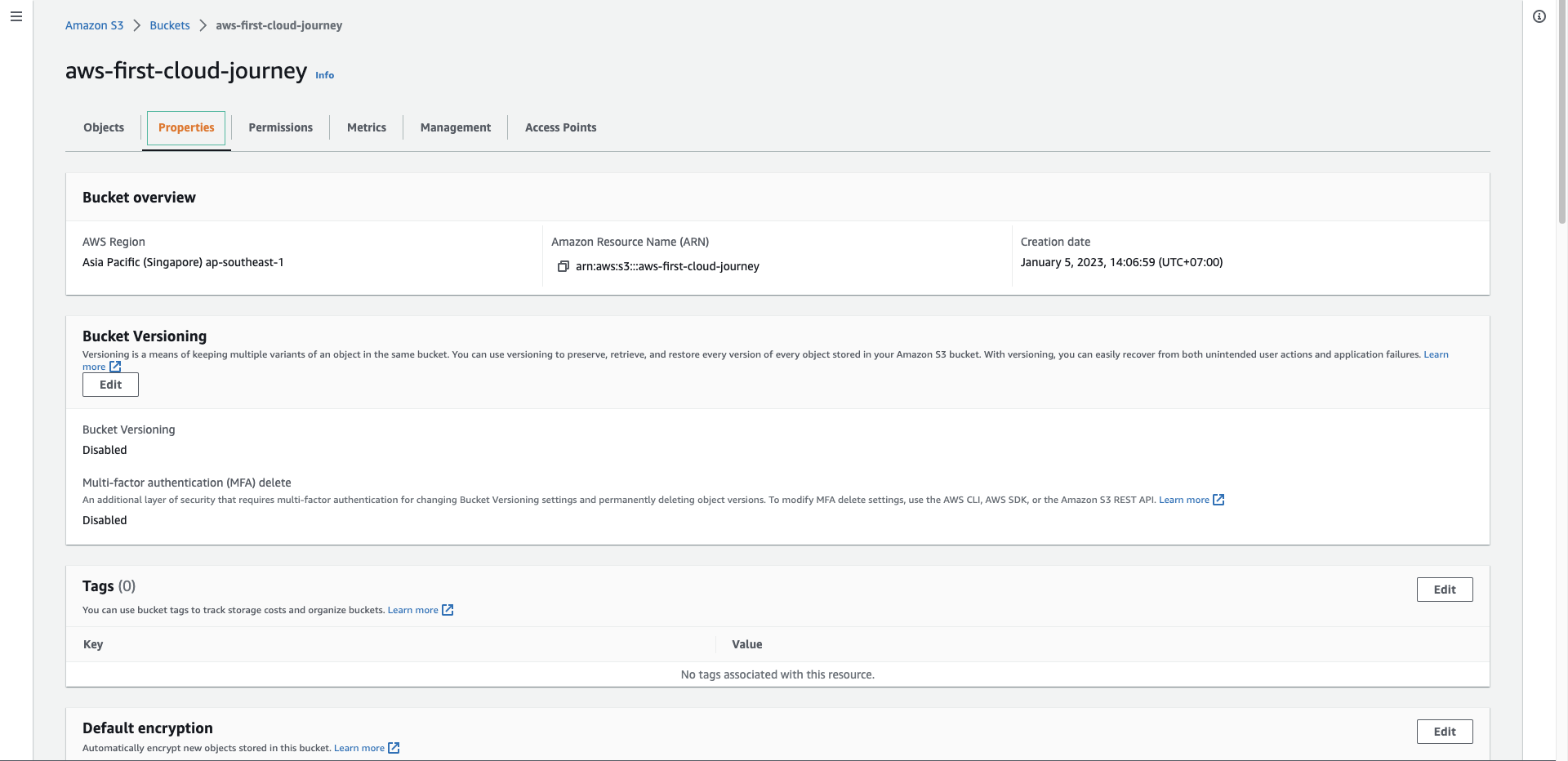
Access Bucket Properties
In your S3 bucket interface, select the Properties tab
What you’ll find: The Properties tab contains all configuration options for your bucket, including versioning, encryption, logging, and website hosting settings.
Locate Static Website Hosting
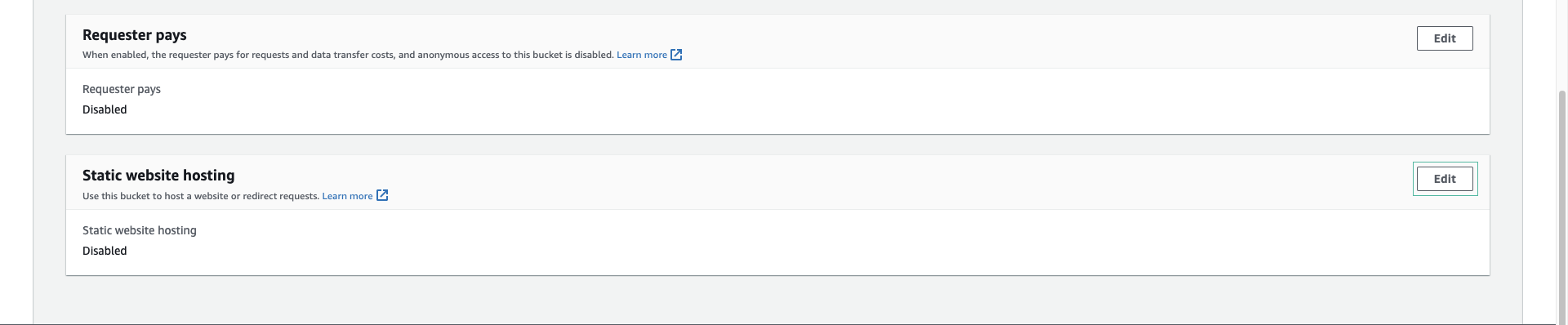
In the Properties interface:
- Scroll down to find the Static website hosting section
- Select Edit to modify the settings
Navigation Tip: The Static website hosting section is typically located in the middle of the Properties page. Look for the globe icon next to the section name.
Configure Website Hosting Settings
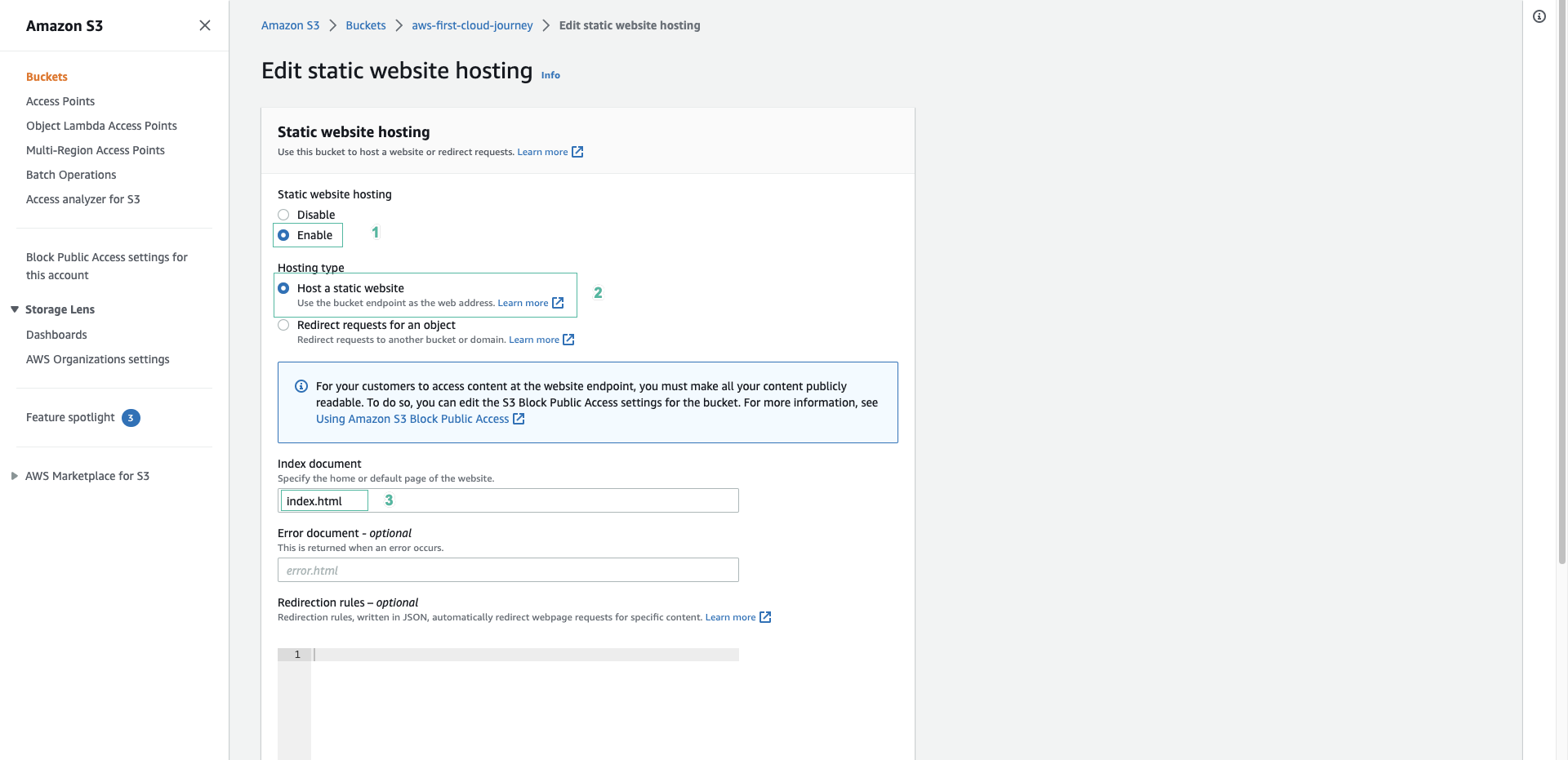
In the Static website hosting configuration:
- Static website hosting: Select Enable
- Hosting type: Select Host a static website
- Index document: Enter
index.html - Error document (optional): Enter
error.htmlif you have a custom error page
Understanding the Settings:
- Index document: The default page served when users visit your website root
- Error document: Custom page shown for 4xx errors (404 Not Found, etc.)
- Redirection rules: Advanced routing rules for complex scenarios
Why index.html?
- Standard convention for web homepages
- Automatically served when users visit your domain root
- Must exist in your bucket root directory
Save Configuration
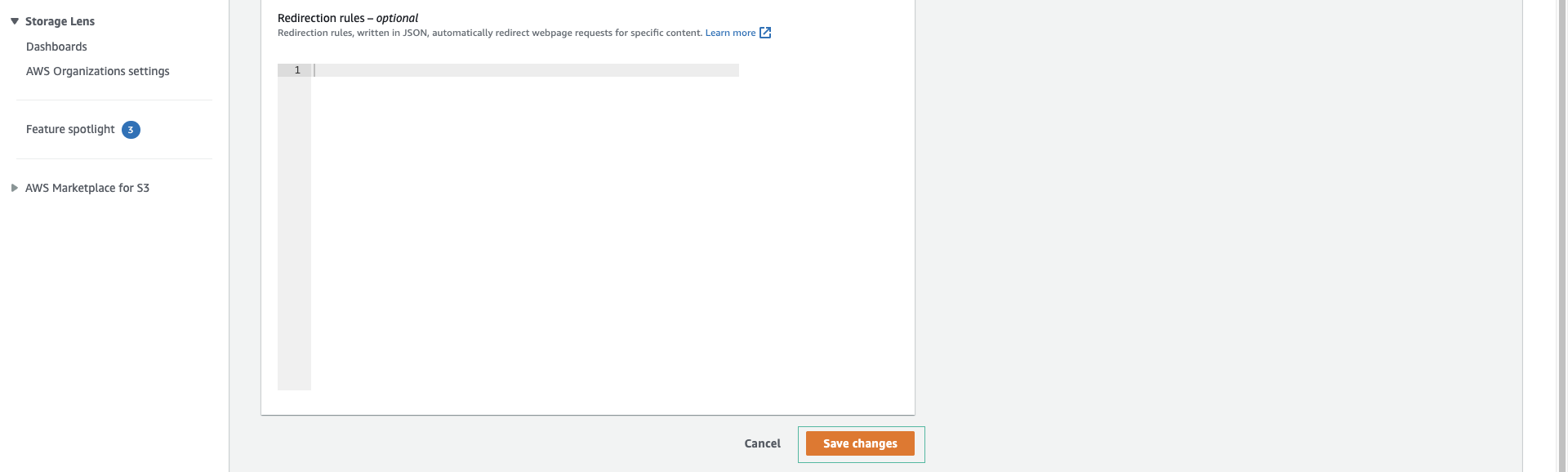
Review your settings and select Save changes
Important: After enabling static website hosting, your bucket will have a website endpoint URL, but the content won’t be accessible until you:
- Upload your website files
- Configure public access permissions
- Set appropriate bucket policies
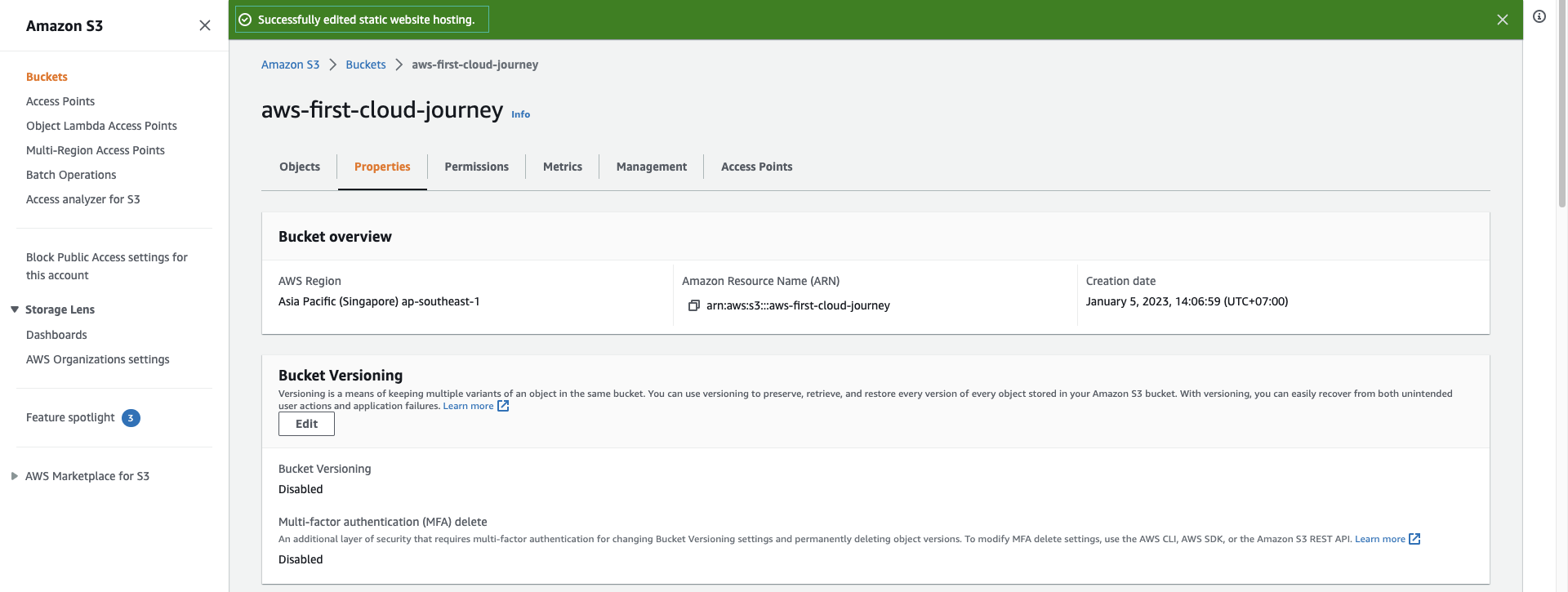
Verify Configuration
Static website hosting is now enabled for your bucket.
What you’ve gained:
- Your bucket now has a website endpoint URL
- S3 will serve index.html as the default page
- The bucket is configured to host static content
- You’re ready to upload website files
Important Information Displayed:
- Website endpoint: The URL where your website will be accessible
- Hosting type: Confirms static website hosting is active
- Index document: Shows your configured default page
Understanding the Website Endpoint
Your website endpoint will look like:
http://bucket-name.s3-website-region.amazonaws.com
Key Points:
- Uses HTTP by default (HTTPS requires CloudFront)
- Region-specific endpoint format
- Different from the REST API endpoint
- Only works with static website hosting enabled
What You’ve Accomplished
- ✅ Enabled static website hosting on your S3 bucket
- ✅ Configured index.html as the default document
- ✅ Generated a website endpoint URL
- ✅ Prepared the bucket to serve web content
Next Steps
Now that static website hosting is enabled, you’ll need to:
- Upload your website files (HTML, CSS, JavaScript, images)
- Configure public access permissions
- Test your website accessibility
Common Use Cases for S3 Static Websites
- Personal portfolios and blogs
- Company landing pages
- Documentation sites
- Single Page Applications (SPAs)
- Marketing campaign pages
- Event websites